Omni Workflow
Watch your models come to life in 4 simple steps.
1. Omni Editor
Drag the component and the 3D file (.glb) directly into Elements.
2. Create Scene
Edit the scene in the live preview (just like a videogame) and export the JSON.
3. Omni Live
Upload the JSON file into the Live component inside Elements.
4. Publish
The 3D animation is complete and ready to be experienced in the browser.
Omni 3d - Guide
Core
Custom Three.js CDN
Defines a custom URL for the main Three.js ES module. Leave the field empty to automatically use the recommended official CDN.
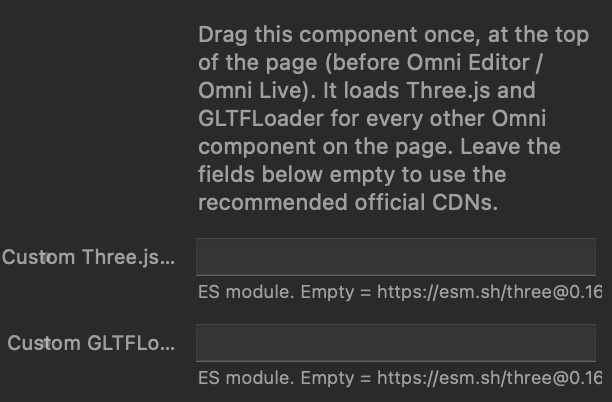
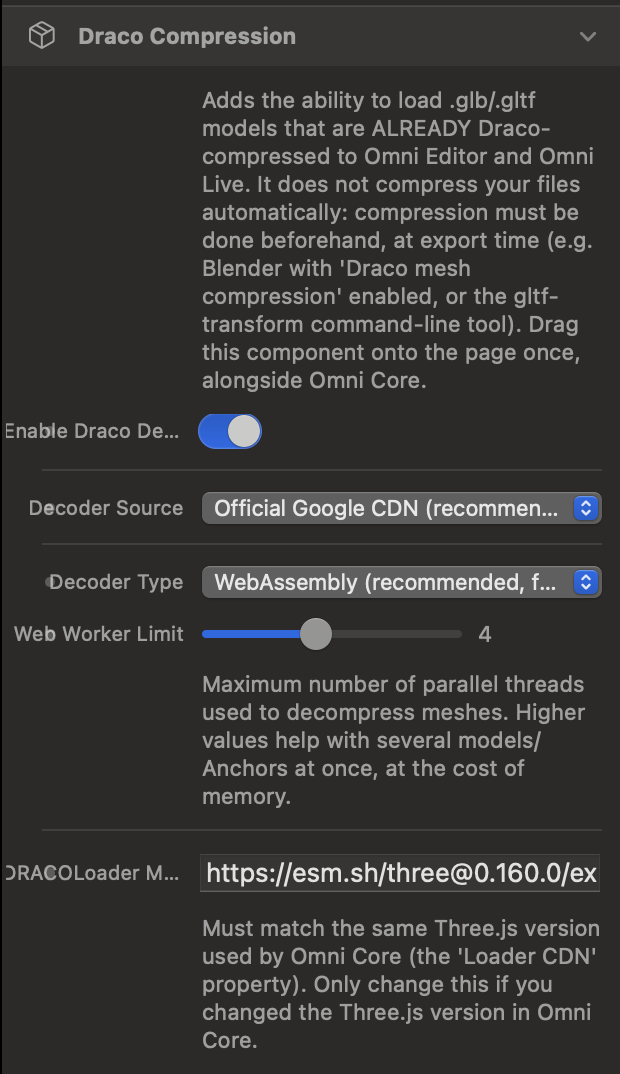
Status Badge
Shows a small visual indicator in the bottom-left corner that informs you in real-time about the loading status of the Three.js library during development.
Draco
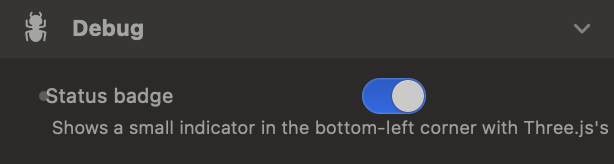
Enable Draco Decoder
Adds the ability to load .glb/.gltf models that are ALREADY Draco-compressed to Omni Editor and Omni Live. It does not compress your files automatically: compression must be done beforehand, at export time.
Decoder Source
Choose whether to use the Official Google CDN (recommended) or a Custom URL for a self-hosted decoder.
Decoder Folder URL
URL of the folder containing draco_decoder.js, draco_decoder.wasm and draco_wasm_wrapper.js, with a trailing slash. Leave empty to use the official CDN
Decoder Type
Select the decoding technology: WebAssembly (recommended, faster) or JavaScript (maximum compatibility).
Web Worker Limit
Maximum number of parallel threads used to decompress meshes. Higher values help with several models/Anchors at once, at the cost of memory.
DRACOLoader Module URL (advanced)
Must match the same Three.js version used by Omni Core (the 'Loader CDN' property). Only change this if you changed the Three.js version in Omni Core.
Editor
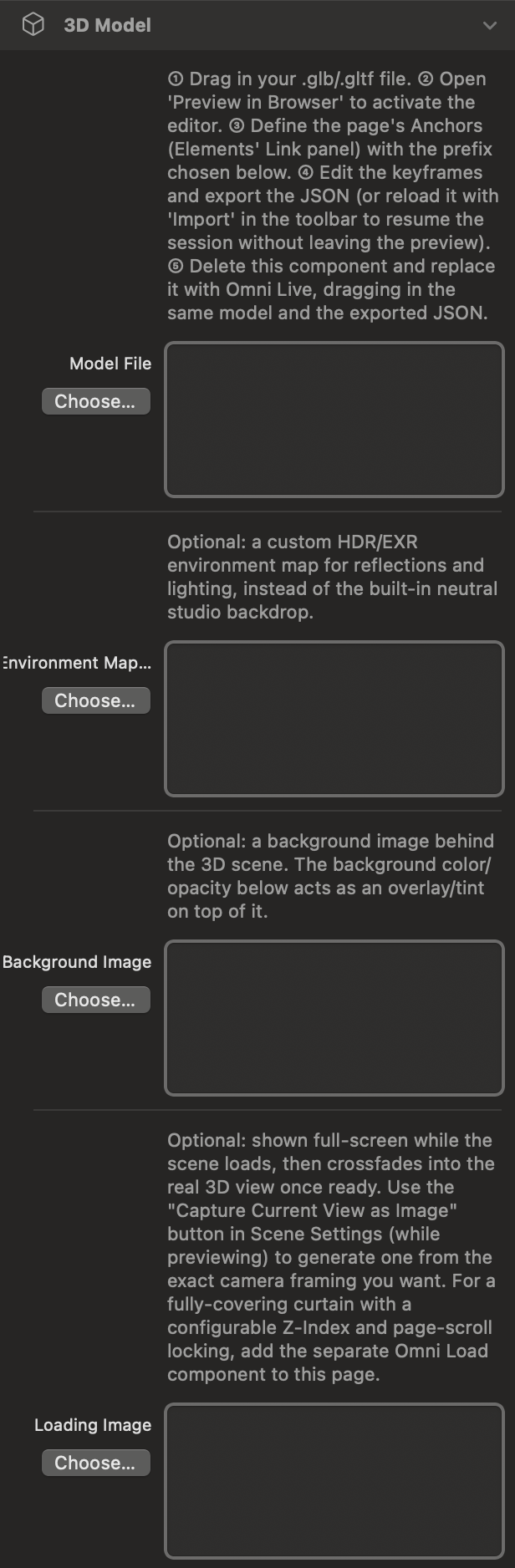
Model File
Drag in your .glb/.gltf file. Open 'Preview in Browser' to activate the editor, define the page's Anchors, edit the keyframes and export the JSON.
Environment Map (HDR/EXR)
Optional: a custom HDR/EXR environment map for reflections and lighting, instead of the built-in neutral studio backdrop.
Background Image
Optional: a background image behind the 3D scene. The background color/opacity below acts as an overlay/tint on top of it.
Loading Image
Optional: shown full-screen while the scene loads, then crossfades into the real 3D view once ready. Use the "Capture Current View as Image" button in Scene Settings (while previewing) to generate one from the exact camera framing you want.
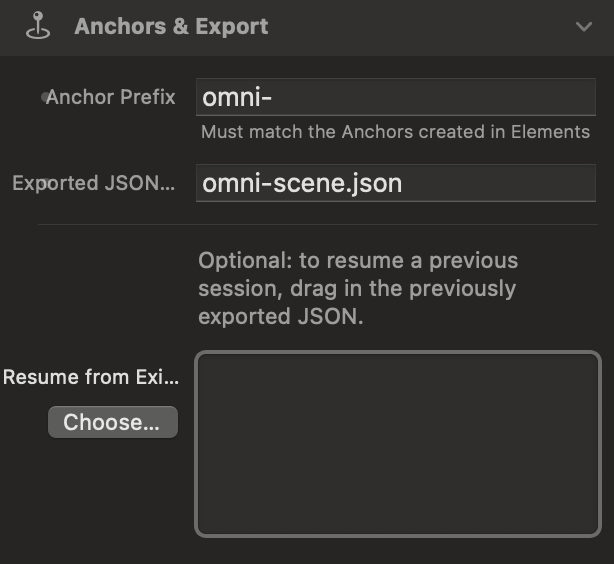
Anchor Prefix
Defines the prefix for the anchors (default is "omni-"). This must exactly match the Anchors created in Elements' Link panel.
Exported JSON File Name
The name of the JSON file that will be exported (default: omni-scene.json).
Resume from Existing JSON
Optional: to resume a previous session, drag in the previously exported JSON.
Live
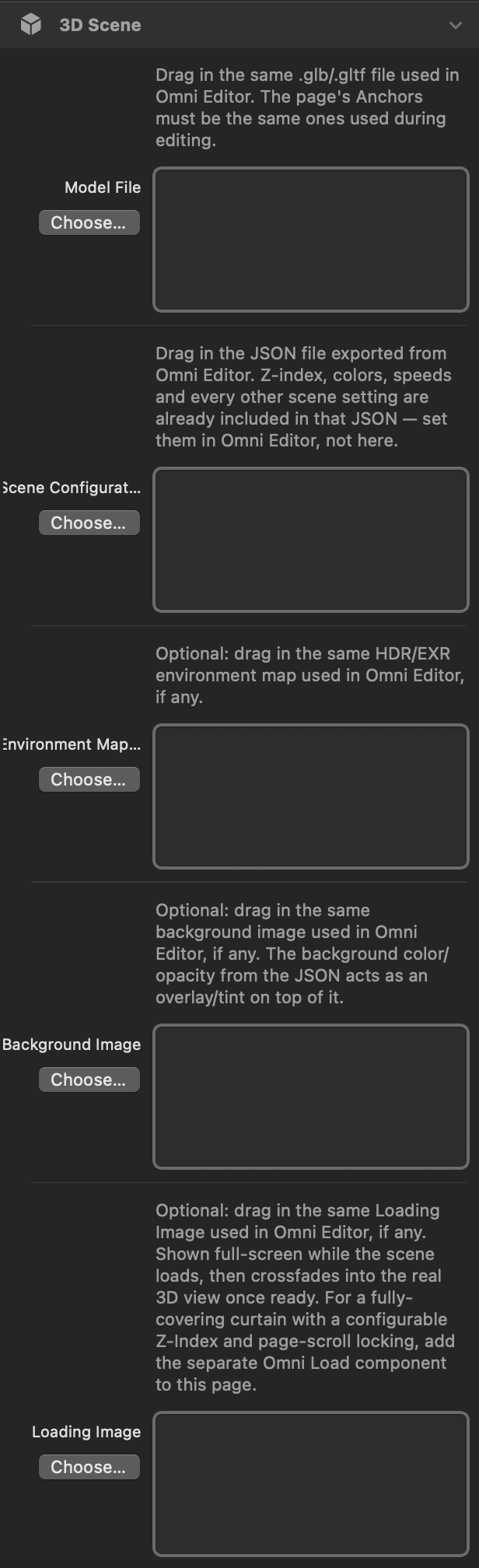
Model File
Drag in the same .glb/.gltf file used in Omni Editor. The page's Anchors must be the same ones used during editing.
Scene Configuration (JSON)
Drag in the JSON file exported from Omni Editor. Z-index, colors, speeds and every other scene setting are already included in that JSON — set them in Omni Editor, not here.
Environment Map (HDR/EXR)
Optional: drag in the same HDR/EXR environment map used in Omni Editor, if any.
Background Image
Optional: drag in the same background image used in Omni Editor, if any. The background color/opacity from the JSON acts as an overlay/tint on top of it.
Loading Image
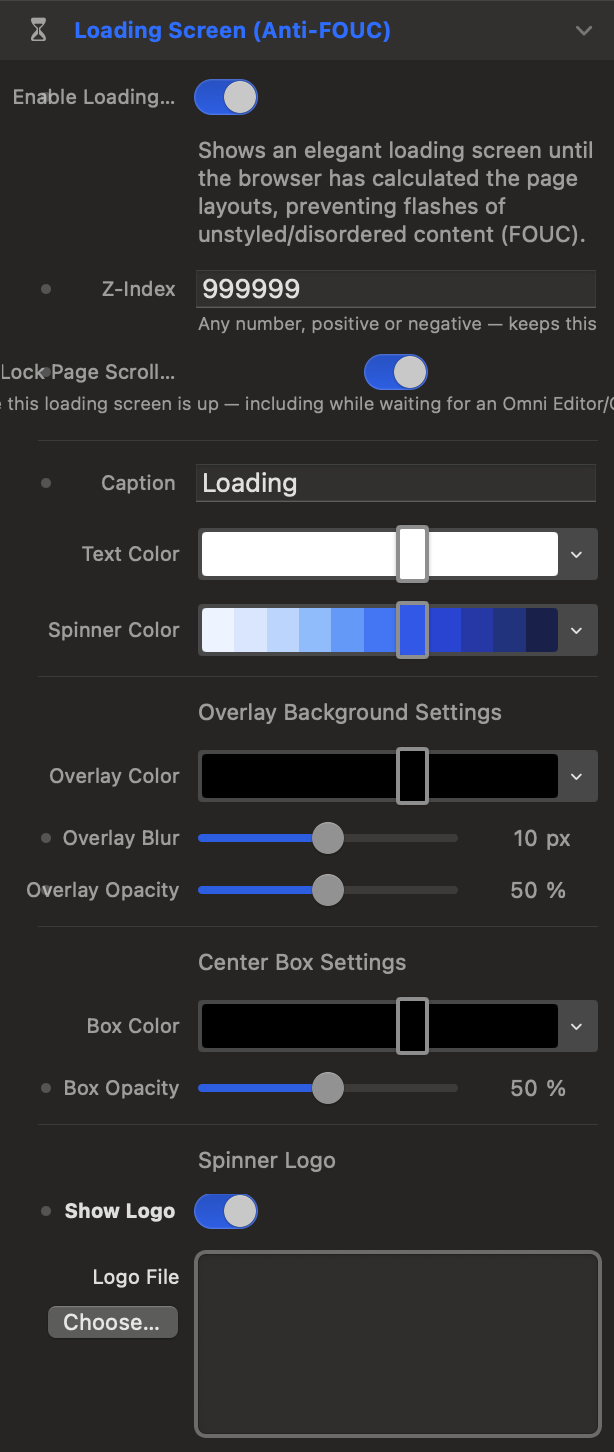
Optional: drag in the same Loading Image used in Omni Editor, if any. Shown full-screen while the scene loads, then crossfades into the real 3D view once ready. For a fully-covering curtain with a configurable Z-Index and page-scroll locking, add the separate Omni Load component to this page.
Load
Model File
Drag in the same .glb/.gltf file used in Omni Editor. The page's Anchors must be the same ones used during editing.
Scene Configuration (JSON)
Drag in the JSON file exported from Omni Editor. Z-index, colors, speeds and every other scene setting are already included in that JSON — set them in Omni Editor, not here.
Environment Map (HDR/EXR)
Optional: drag in the same HDR/EXR environment map used in Omni Editor, if any.
Background Image
Optional: drag in the same background image used in Omni Editor, if any. The background color/opacity from the JSON acts as an overlay/tint on top of it.
Loading Image
Optional: drag in the same Loading Image used in Omni Editor, if any. Shown full-screen while the scene loads, then crossfades into the real 3D view once ready. For a fully-covering curtain with a configurable Z-Index and page-scroll locking, add the separate Omni Load component to this page.